AI Valley Logo
THE AI VALLEYK12 Coding & Robotics
Back to Blog
Build an Interactive Space Dodger Game: Step-by-Step Python Tutorial | AI Valley Zirakpur
Bhavesh Bansal
April 16, 2026
15 min read

Build an Interactive Space Dodger Game: A Hands-On Python Tutorial from AI Valley

Welcome, future game developers! As a senior technical instructor at AI Valley—the premier institute driving STEM education across the Tricity area—I see students transform from complete beginners into confident creators. At our flagship lab in Zirakpur, students build dynamic projects just like this one every week to master core programming concepts. Today, we are going to dive into the exciting world of game development by creating an interactive 'Space Dodger' game using Python and Pygame.

Whether you are a young tech enthusiast diving into kids programming, or an adult looking to master Python, this tutorial is meticulously designed for you. By the end of this guide, you will have a working game and a much deeper understanding of how computer logic works.

🎯 What You'll Build

You will build a fully functional arcade-style survival game where the player controls a spaceship dodging incoming asteroid fields. The game features real-time keyboard controls, randomized enemy generation, collision detection physics, and a live scoring system. This is exactly the kind of project our students build during their weekend coding classes to master Python logic and Object-Oriented concepts.

📋 Prerequisites & Materials

Before we write our first line of code, let's make sure your development environment is ready.

  • Python 3.8+: Installed on your computer.
  • Pygame Library: We will use this dedicated game development module. It provides excellent pre-built functions for drawing graphics and handling sound.
  • Code Editor: VS Code, PyCharm, or Python IDLE.
  • Keyboard & Mouse: For testing your game controls.
  • Note: If you don't have a PC setup yet, visit AI Valley's Zirakpur lab where all materials and high-end workstations are provided for our students!

To install Pygame, open your terminal or command prompt and run:

bash
pip install pygame

---

Step 1: Setting up the Game Engine and Canvas

Every great game starts with a blank canvas. In this first step, we will import our necessary libraries, initialize the Pygame engine, and set up our display window. Think of this as building the theater where our play will take place.
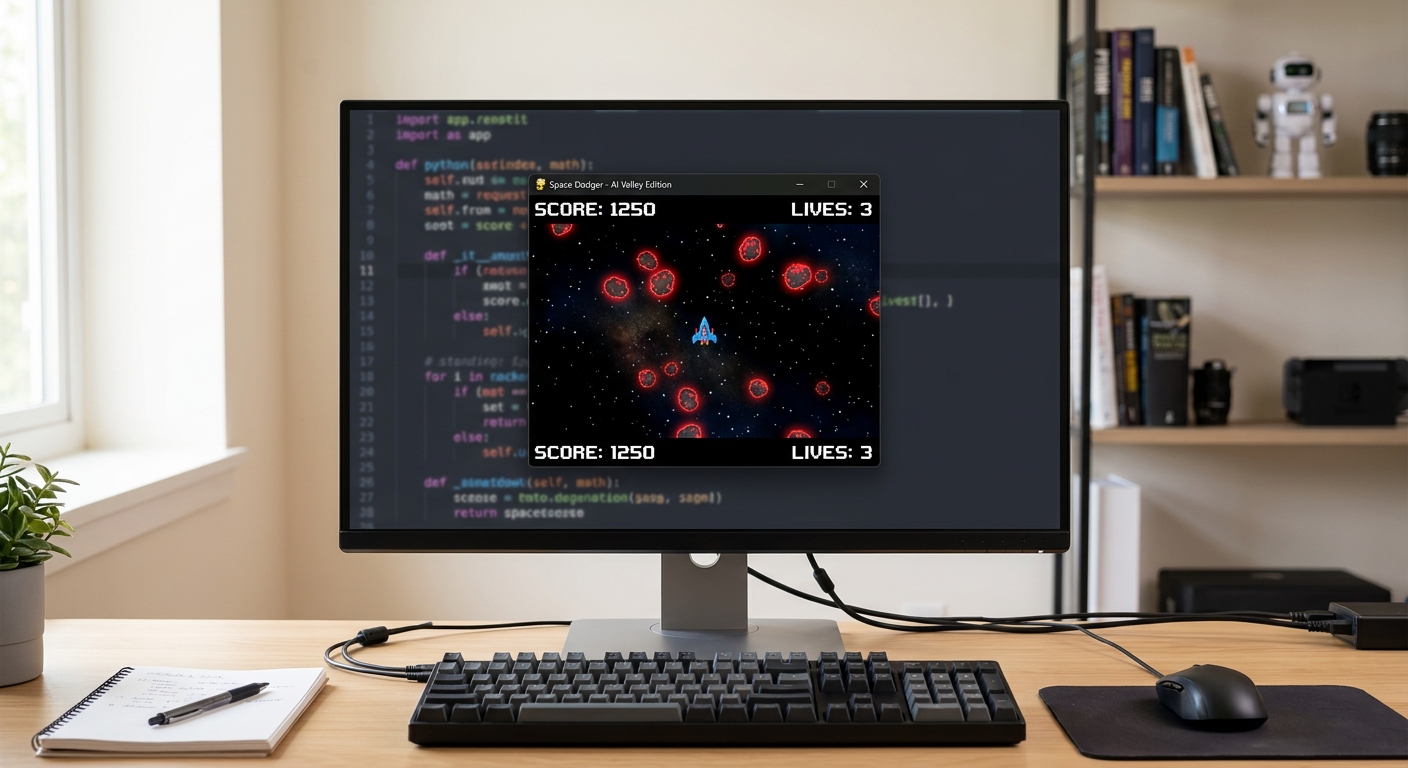
A computer screen showing a black Pygame window titled 'Space Dodger - AI Valley Edition' with code visible in the background.

A computer screen showing a black Pygame window titled 'Space Dodger - AI Valley Edition' with code visible in the background.

python
import pygame
import random
import sys

# Initialize the Pygame engine
pygame.init()

# Define Screen Dimensions (Width, Height)
WIDTH = 800
HEIGHT = 600

# Create the game window
screen = pygame.display.set_mode((WIDTH, HEIGHT))
pygame.display.set_caption("Space Dodger - AI Valley Edition")

# Define reusable color palettes (RGB format)
BLACK = (0, 0, 0)
WHITE = (255, 255, 255)
BLUE = (0, 120, 255)
RED = (220, 20, 60)
YELLOW = (255, 215, 0)

# Setup the game clock for consistent frame rates
clock = pygame.time.Clock()
FPS = 60

print("Engine initialized successfully!")

💡 Understanding the Code

We import pygame to handle graphics, random to spawn asteroids unpredictably, and sys to securely close the game. The pygame.init() command turns on all the internal game engine gears. We then define a window size of 800x600 pixels.

A Quick Note on Pygame Coordinates: Unlike standard math graphs where (0,0) is in the bottom-left, computer graphics place (0,0) at the top-left of the screen. As the Y-value increases, objects move down the screen.

Step 2: Forging the Player's Spaceship

Now that we have a space (the black screen), we need a spaceship! Instead of relying on external image files—which can get messy to link—we are going to draw our ship dynamically using Pygame's built-in polygon drawing tools.
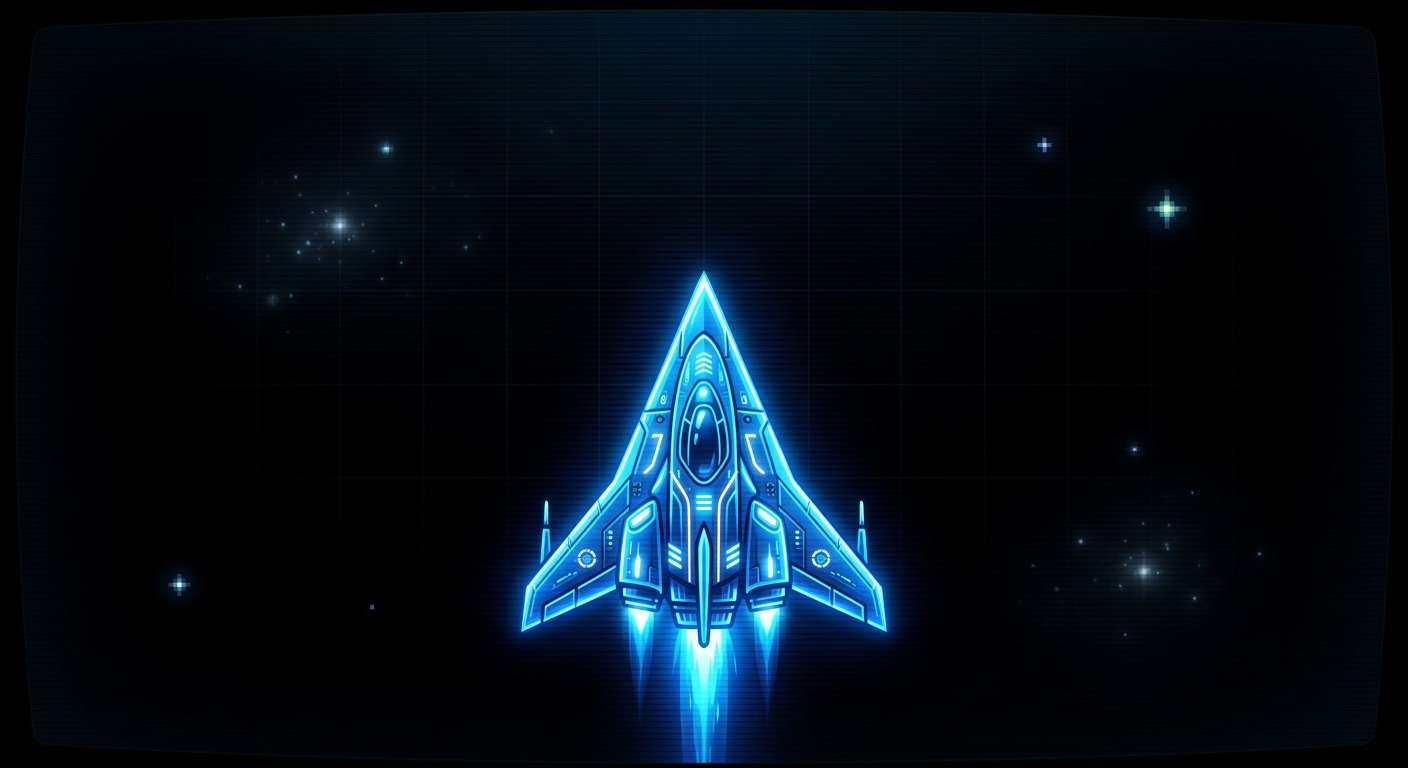
A bright blue triangular spaceship rendered at the bottom center of the black game screen.

A bright blue triangular spaceship rendered at the bottom center of the black game screen.

python
# Player configuration variables
player_size = 50
# Start the player in the middle-bottom of the screen
player_x = WIDTH // 2 - player_size // 2
player_y = HEIGHT - 2 * player_size
player_speed = 8

def draw_player(x, y):
    # Create a triangle pointing upwards
    # Points: (Top Center, Bottom Left, Bottom Right)
    points = [
        (x + player_size // 2, y),
        (x, y + player_size),
        (x + player_size, y + player_size)
    ]
    pygame.draw.polygon(screen, BLUE, points)

💡 Understanding the Code

We define the player's size, starting coordinates (player_x, player_y), and movement speed. The draw_player function takes an X and Y coordinate and calculates three points to form a triangle. The pygame.draw.polygon() function then colors this triangle BLUE and stamps it onto our screen.

Step 3: Spawning the Asteroid Enemies

A game isn't fun without a challenge! Let's write the logic to create falling red asteroids. If you're looking for the best coding classes for kids in Zirakpur, you'll know that we love teaching lists and loops through mechanics exactly like this.
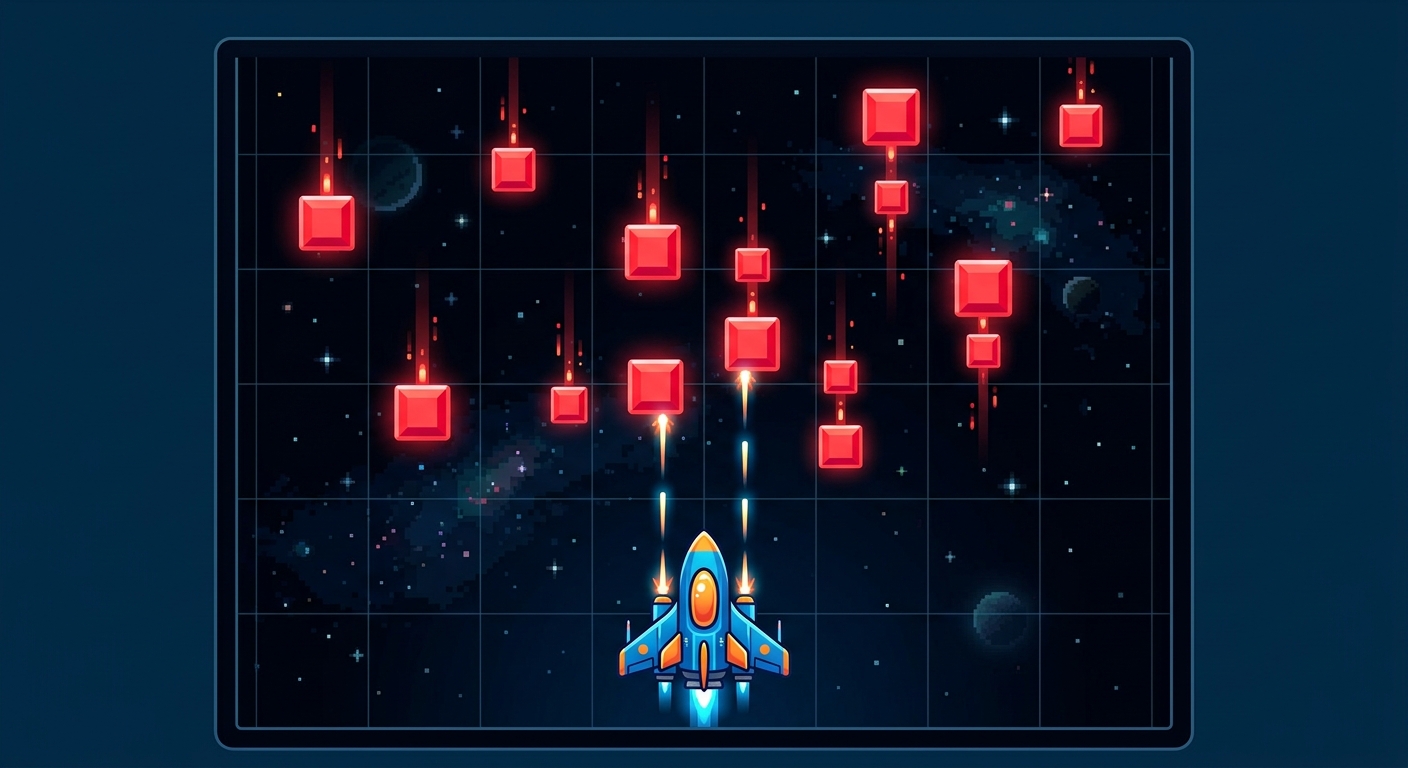
Red square asteroids of uniform size falling from the top edge of the screen downwards.

Red square asteroids of uniform size falling from the top edge of the screen downwards.

python
# Enemy configuration variables
enemy_size = 40
enemy_list = []
enemy_speed = 5

def drop_enemies(enemy_list):
    # Random chance to spawn a new enemy to prevent overwhelming the player
    delay = random.random()
    if len(enemy_list) < 10 and delay < 0.05:
        x_pos = random.randint(0, WIDTH - enemy_size)
        y_pos = -enemy_size  # Start slightly off-screen at the top
        enemy_list.append([x_pos, y_pos])

def draw_enemies(enemy_list):
    for enemy_pos in enemy_list:
        # Draw a red rectangle for each enemy
        pygame.draw.rect(screen, RED, (enemy_pos[0], enemy_pos[1], enemy_size, enemy_size))

def update_enemy_positions(enemy_list, score, speed):
    # IMPORTANT: We iterate over a slice copy of the list [:] to safely remove items!
    for enemy_pos in enemy_list[:]:
        # Move the enemy down the screen
        if enemy_pos[1] >= 0 and enemy_pos[1] < HEIGHT:
            enemy_pos[1] += speed
        else:
            # Remove the enemy if it goes off screen and increase score
            enemy_list.remove(enemy_pos)
            score += 1
            
            # Dynamic Difficulty: Increase speed every 10 points!
            if score % 10 == 0:
                speed += 1.0
                
    return score, speed

💡 Understanding the Code

We create an empty list enemy_list to track all active asteroids.
  • drop_enemies uses the random library to occasionally spawn a new asteroid.
  • update_enemy_positions pushes each asteroid down the screen.
  • Pro Tip from AI Valley: Notice how we loop through enemy_list[:] instead of just enemy_list? Modifying a list (like removing an asteroid) while looping through it is a classic beginner mistake that causes Python to skip items. Using [:] creates a safe temporary copy to loop over!

    Step 4: Implementing Collision Detection

    How does the computer know when your spaceship crashes into an asteroid? We use a technique called Axis-Aligned Bounding Boxes (AABB). We will draw invisible boxes around our spaceship and the asteroids and check if they overlap mathematically.
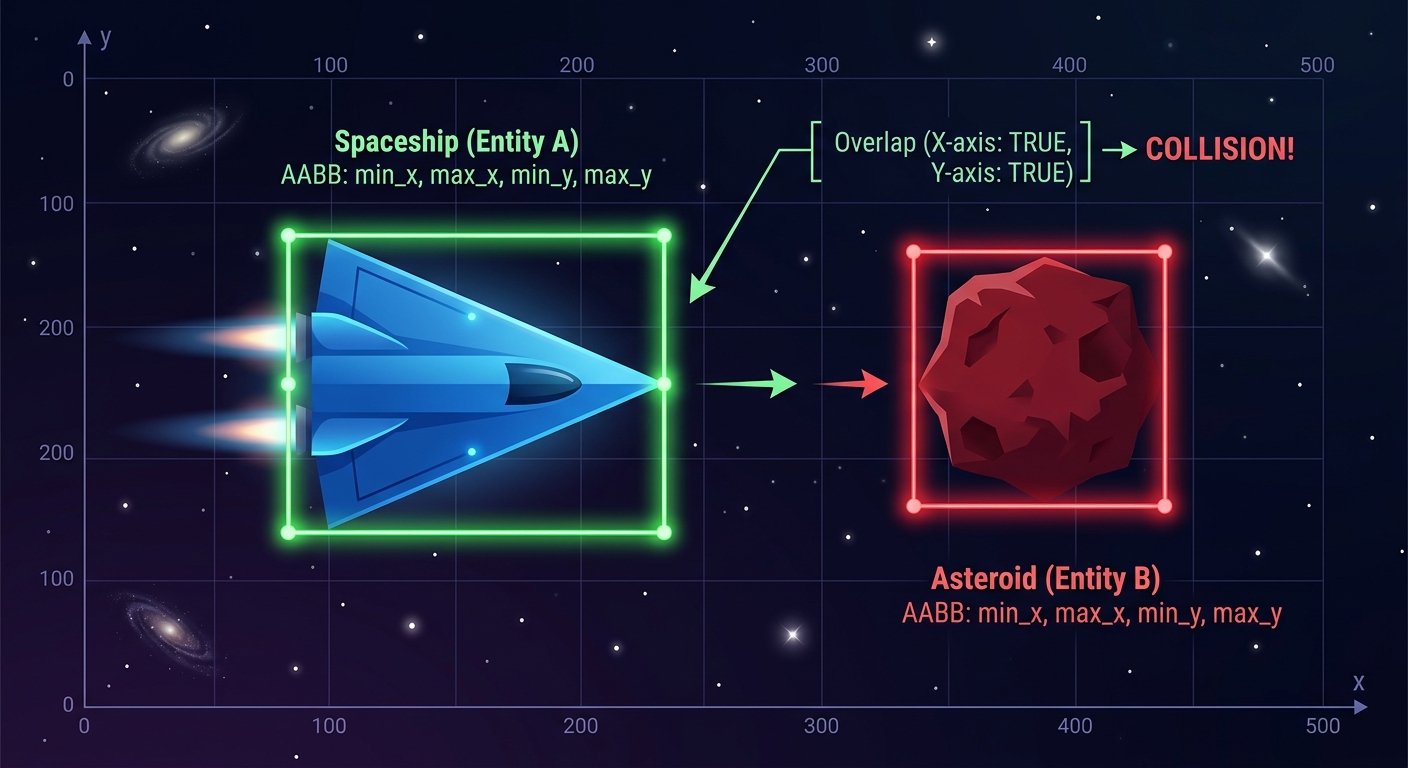
    A visual diagram showing invisible rectangular bounding boxes overlapping between the blue spaceship and a red asteroid.

    A visual diagram showing invisible rectangular bounding boxes overlapping between the blue spaceship and a red asteroid.

    python
    def check_collision(enemy_list, player_x, player_y):
        # Create a mathematical rectangle for the player
        player_rect = pygame.Rect(player_x, player_y, player_size, player_size)
        
        for enemy_pos in enemy_list:
            # Create a mathematical rectangle for each enemy
            enemy_rect = pygame.Rect(enemy_pos[0], enemy_pos[1], enemy_size, enemy_size)
            
            # Pygame's built in overlap checker
            if player_rect.colliderect(enemy_rect):
                return True
                
        return False
    

    💡 Understanding the Code

    pygame.Rect creates an invisible rectangle based on the object's X position, Y position, width, and height. If the player's rectangle and any enemy's rectangle touch, colliderect() triggers and the function returns True (meaning a crash happened).

    Step 5: The Main Game Loop & Keyboard Controls

    Now, we bring everything together. The "Game Loop" is the beating heart of your program. It continuously checks for user inputs, updates physics, and redraws the graphics 60 times a second. Students seeking the best Python training in Chandigarh and Mohali often spend hours perfecting game loops just like this!
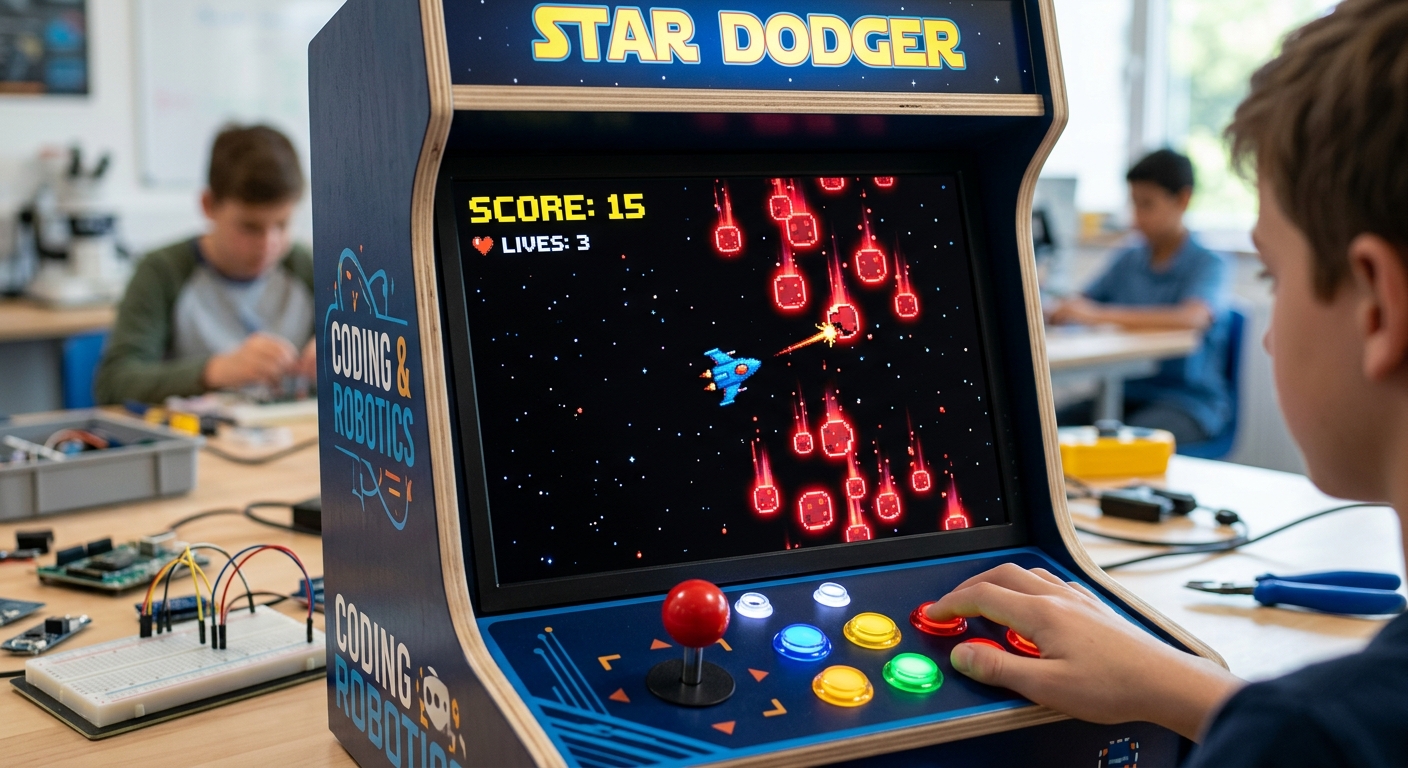
    The complete game running, showing the blue spaceship moving left while dodging red asteroids, with a yellow score '15' in the corner.

    The complete game running, showing the blue spaceship moving left while dodging red asteroids, with a yellow score '15' in the corner.

    python
    score = 0
    # Setup a font for our score display
    font = pygame.font.SysFont("monospace", 35)
    game_over = False
    
    # The Main Game Loop
    while not game_over:
        # 1. Event Handling (Quitting the game)
        for event in pygame.event.get():
            if event.type == pygame.QUIT:
                pygame.quit()
                sys.exit()
                
        # 2. Keyboard Controls
        keys = pygame.key.get_pressed()
        if keys[pygame.K_LEFT] and player_x > 0:
            player_x -= player_speed
        if keys[pygame.K_RIGHT] and player_x < WIDTH - player_size:
            player_x += player_speed
    
        # 3. Clear the screen (paint it black)
        screen.fill(BLACK)
    
        # 4. Update Game Logic
        drop_enemies(enemy_list)
        score, enemy_speed = update_enemy_positions(enemy_list, score, enemy_speed)
    
        # 5. Check for game over condition
        if check_collision(enemy_list, player_x, player_y):
            game_over = True
            break
    
        # 6. Draw Everything
        draw_enemies(enemy_list)
        draw_player(player_x, player_y)
        
        # Draw the score text
        score_text = font.render(f"Score: {score}", True, YELLOW)
        screen.blit(score_text, (10, 10))
    
        # 7. Update display and wait for the next frame
        clock.tick(FPS)
        pygame.display.update()
    

    💡 Understanding the Code

    This while loop runs continuously. It checks if you pressed the "X" to close the window. It detects the Left and Right arrow keys, modifying player_x to move the ship, while keeping it within screen boundaries (> 0 and < WIDTH).

    We then fill the screen black (to erase the previous frame), update enemy positions, check for collisions, draw the new frame, and update the score. The command clock.tick(FPS) ensures the game runs at exactly 60 frames per second on any computer, preventing it from running too fast on high-end gaming rigs!

    Step 6: Handling the Game Over Sequence

    Abruptly closing the game when you crash isn't very user-friendly. Let's add a dramatic "Game Over" screen that shows the player their final score before the game exits.
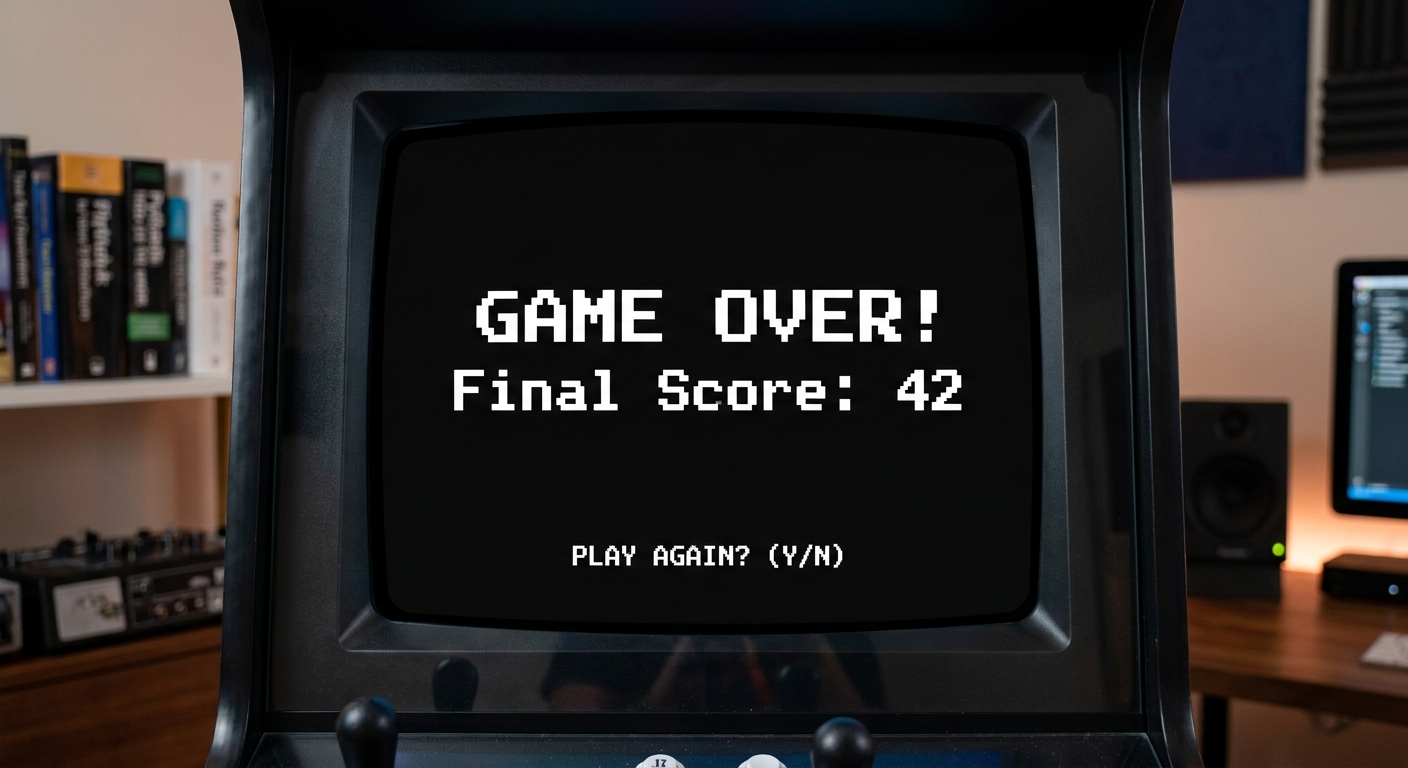
    A dramatic stark Game Over screen with white text displaying 'GAME OVER! Final Score: 42' centered on a black background.

    A dramatic stark Game Over screen with white text displaying 'GAME OVER! Final Score: 42' centered on a black background.

    python
    # Add this code to the very bottom of your script, OUTSIDE the while loop
    
    # Paint the screen black one last time
    screen.fill(BLACK)
    
    # Create the Game Over text
    large_font = pygame.font.SysFont("monospace", 45, bold=True)
    game_over_text = large_font.render(f"GAME OVER! Final Score: {score}", True, WHITE)
    
    # Center the text mathematically
    text_rect = game_over_text.get_rect(center=(WIDTH/2, HEIGHT/2))
    screen.blit(game_over_text, text_rect)
    
    # Push the text to the screen
    pygame.display.update()
    
    # Freeze the screen for 3 seconds (3000 milliseconds) so the user can read it
    pygame.time.wait(3000)
    
    # Cleanly exit the game
    pygame.quit()
    sys.exit()
    

    📜 The Complete Code Put Together

    If you got lost during any of the steps, don't worry! Here is the complete, fully assembled source code for your Space Dodger game. Simply copy and paste this into a file named space_dodger.py and run it:

    Click to view the complete Space Dodger Code

    python
    import pygame
    import random
    import sys
    
    pygame.init()
    
    WIDTH = 800
    HEIGHT = 600
    screen = pygame.display.set_mode((WIDTH, HEIGHT))
    pygame.display.set_caption("Space Dodger - AI Valley Edition")
    
    BLACK = (0, 0, 0)
    WHITE = (255, 255, 255)
    BLUE = (0, 120, 255)
    RED = (220, 20, 60)
    YELLOW = (255, 215, 0)
    
    clock = pygame.time.Clock()
    FPS = 60
    
    # Player setup
    player_size = 50
    player_x = WIDTH // 2 - player_size // 2
    player_y = HEIGHT - 2 * player_size
    player_speed = 8
    
    # Enemy setup
    enemy_size = 40
    enemy_list = []
    enemy_speed = 5
    
    def draw_player(x, y):
        points = [
            (x + player_size // 2, y),
            (x, y + player_size),
            (x + player_size, y + player_size)
        ]
        pygame.draw.polygon(screen, BLUE, points)
    
    def drop_enemies(enemy_list):
        delay = random.random()
        if len(enemy_list) < 10 and delay < 0.05:
            x_pos = random.randint(0, WIDTH - enemy_size)
            y_pos = -enemy_size
            enemy_list.append([x_pos, y_pos])
    
    def draw_enemies(enemy_list):
        for enemy_pos in enemy_list:
            pygame.draw.rect(screen, RED, (enemy_pos[0], enemy_pos[1], enemy_size, enemy_size))
    
    def update_enemy_positions(enemy_list, score, speed):
        for enemy_pos in enemy_list[:]:
            if enemy_pos[1] >= 0 and enemy_pos[1] < HEIGHT:
                enemy_pos[1] += speed
            else:
                enemy_list.remove(enemy_pos)
                score += 1
                if score % 10 == 0:
                    speed += 1.0
        return score, speed
    
    def check_collision(enemy_list, player_x, player_y):
        player_rect = pygame.Rect(player_x, player_y, player_size, player_size)
        for enemy_pos in enemy_list:
            enemy_rect = pygame.Rect(enemy_pos[0], enemy_pos[1], enemy_size, enemy_size)
            if player_rect.colliderect(enemy_rect):
                return True
        return False
    
    score = 0
    font = pygame.font.SysFont("monospace", 35)
    game_over = False
    
    # Main Game Loop
    while not game_over:
        for event in pygame.event.get():
            if event.type == pygame.QUIT:
                pygame.quit()
                sys.exit()
                
        keys = pygame.key.get_pressed()
        if keys[pygame.K_LEFT] and player_x > 0:
            player_x -= player_speed
        if keys[pygame.K_RIGHT] and player_x < WIDTH - player_size:
            player_x += player_speed
    
        screen.fill(BLACK)
    
        drop_enemies(enemy_list)
        score, enemy_speed = update_enemy_positions(enemy_list, score, enemy_speed)
        
        if check_collision(enemy_list, player_x, player_y):
            game_over = True
            break
    
        draw_enemies(enemy_list)
        draw_player(player_x, player_y)
        
        score_text = font.render(f"Score: {score}", True, YELLOW)
        screen.blit(score_text, (10, 10))
    
        clock.tick(FPS)
        pygame.display.update()
    
    # Game Over Sequence
    screen.fill(BLACK)
    large_font = pygame.font.SysFont("monospace", 45, bold=True)
    game_over_text = large_font.render(f"GAME OVER! Final Score: {score}", True, WHITE)
    text_rect = game_over_text.get_rect(center=(WIDTH/2, HEIGHT/2))
    screen.blit(game_over_text, text_rect)
    pygame.display.update()
    
    pygame.time.wait(3000)
    pygame.quit()
    sys.exit()
    

    🎉 Final Result & Next Steps

    Congratulations! You have just built a complete, interactive arcade game from scratch using Python. You've mastered coordinate systems, event handling, game loops, collision mathematics, and object movement. These are the exact same fundamental principles used by professional software engineers and game developers!

    🚀 Challenge: Take It Further

    Ready to level up? Try adding these features:
  • Add Sound Effects: Use pygame.mixer.Sound to add laser sounds or crash explosions.
  • Include Power-ups: Create a different colored square that, when collected, reduces the speed of the asteroids for 5 seconds.
  • Advanced Mechanics: In our advanced classes at AI Valley, students take this further by building a main menu system, adding high-score saving using text files, and converting the spaceship into a shooting gallery!
  • 🏫 Start Your Tech Journey at AI Valley

    Building games is an incredible introduction to your coding journey. AI Valley is proud to be the top-rated destination for tech education, serving brilliant minds across Chandigarh, Mohali, Panchkula, and our home base in Zirakpur.

    Our comprehensive curriculum covers everything from beginner logic to advanced AI and Python development. Whether you are looking for engaging after-school programs for your children or professional upskilling for yourself, we provide the ultimate learning ecosystem across the entire Tricity region.

    Ready to transform screen time into creation time? Visit aivalley.co.in or drop by our state-of-the-art lab to Enroll at AI Valley today, and let's build the future together!

    Tags

    best coding classes for kids in Zirakpurlearn Python in ZirakpurAI classes for kids ChandigarhMohaliPanchkulacoding institute near me ZirakpurSTEM education Tricitykids programming Zirakpurbest robotics institute Chandigarh TricityPython game tutorial